Free safe zone overlays for TikTok, Reels and Shorts
Short answer: download a transparent 1080 × 1920 overlay below, place it on the top track of your editor over your vertical video, and keep text, faces and logos inside the dashed Safe area. Hide the overlay before you export. Each file is available as PNG (works everywhere) and SVG (sharp at any size), with the margins and their sources listed under the downloads.
Download the overlays
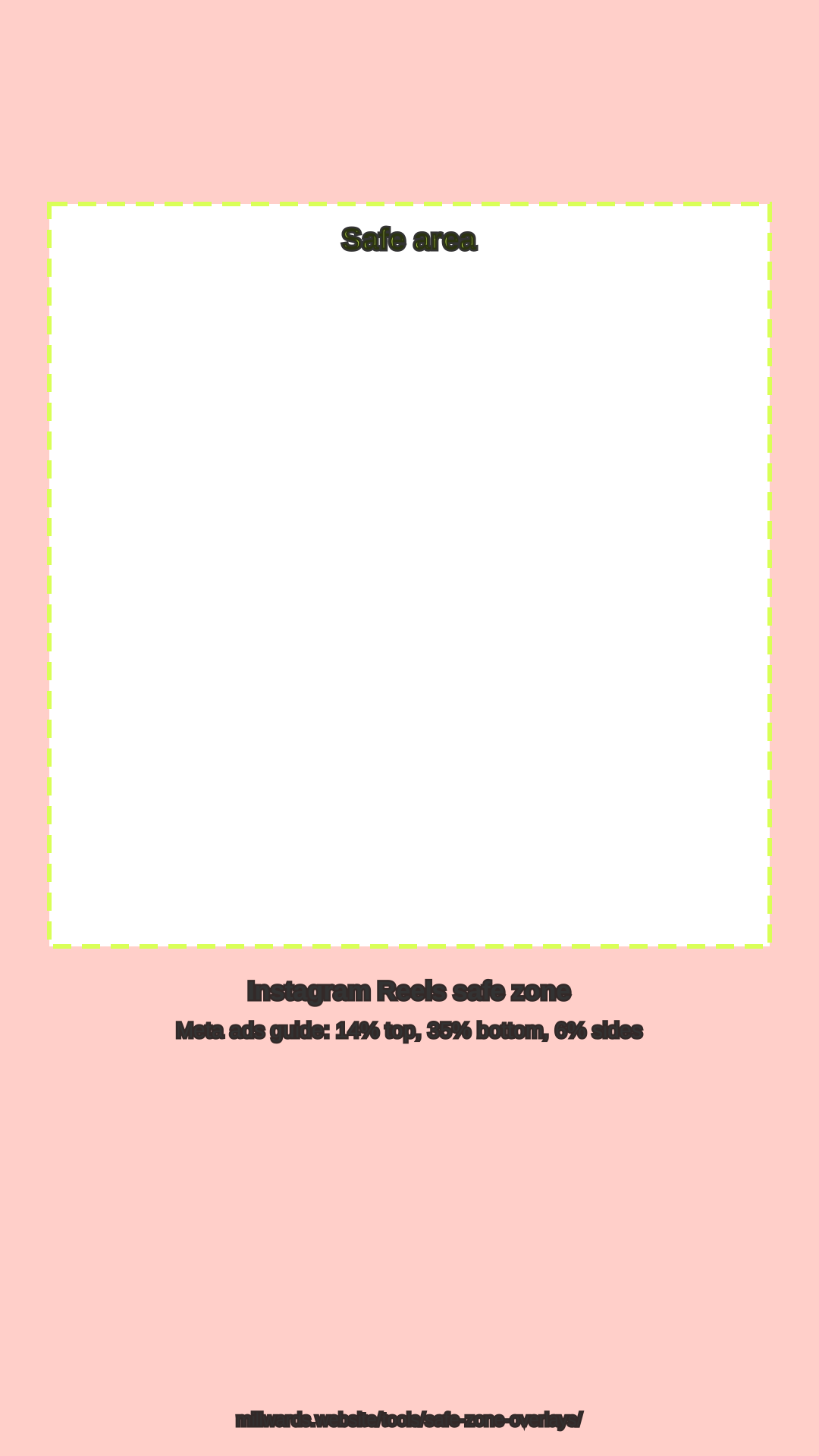
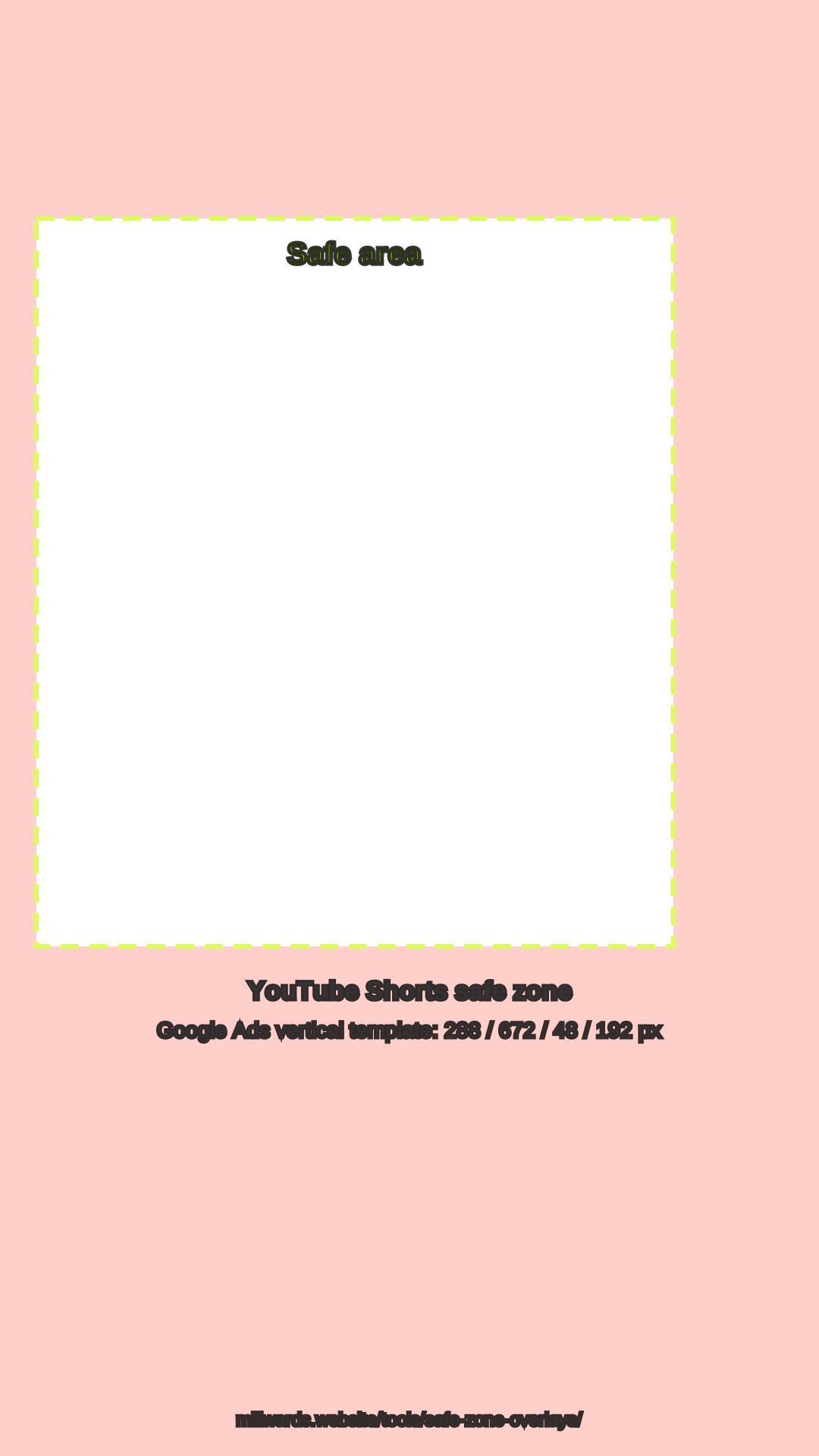
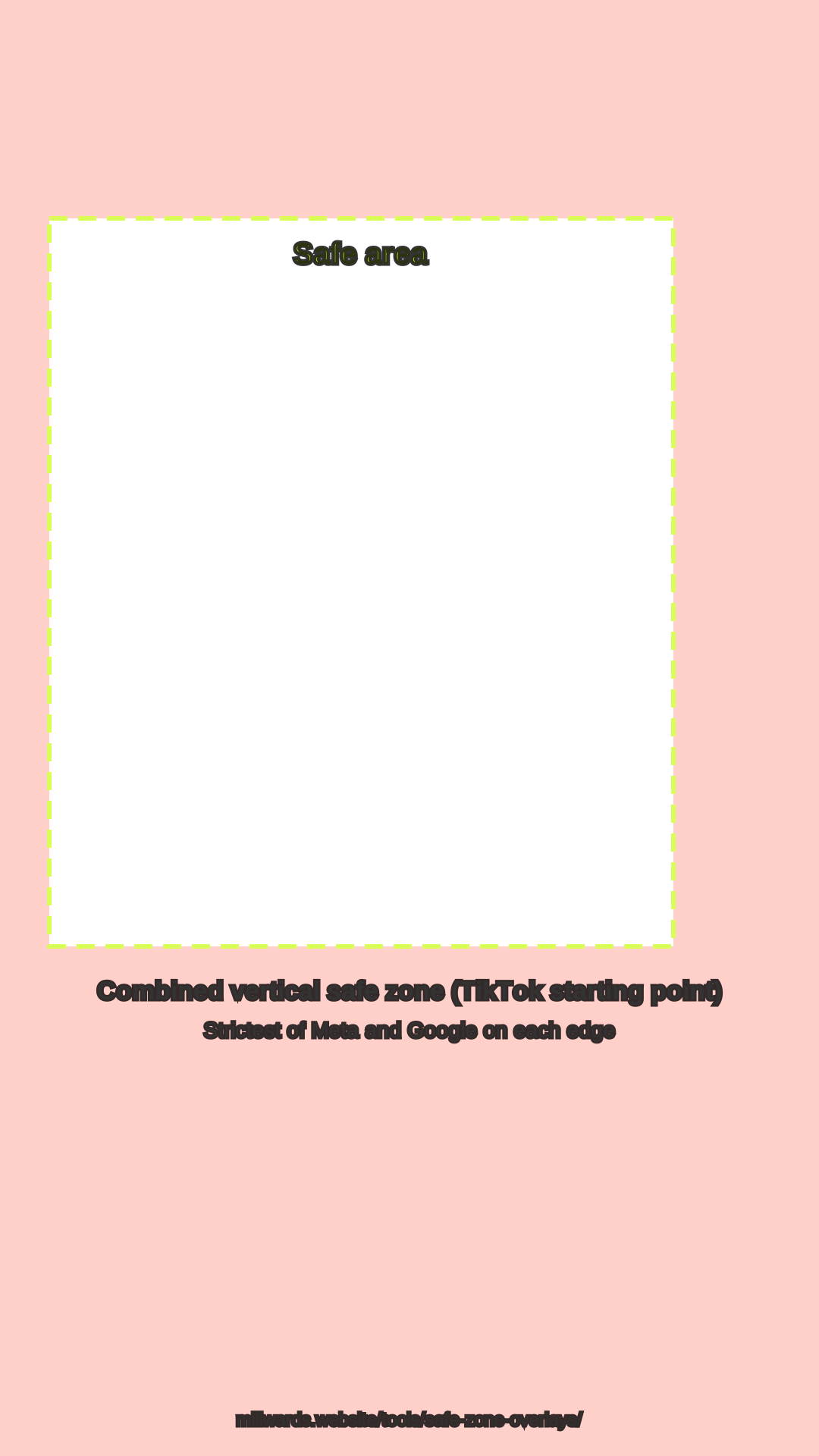
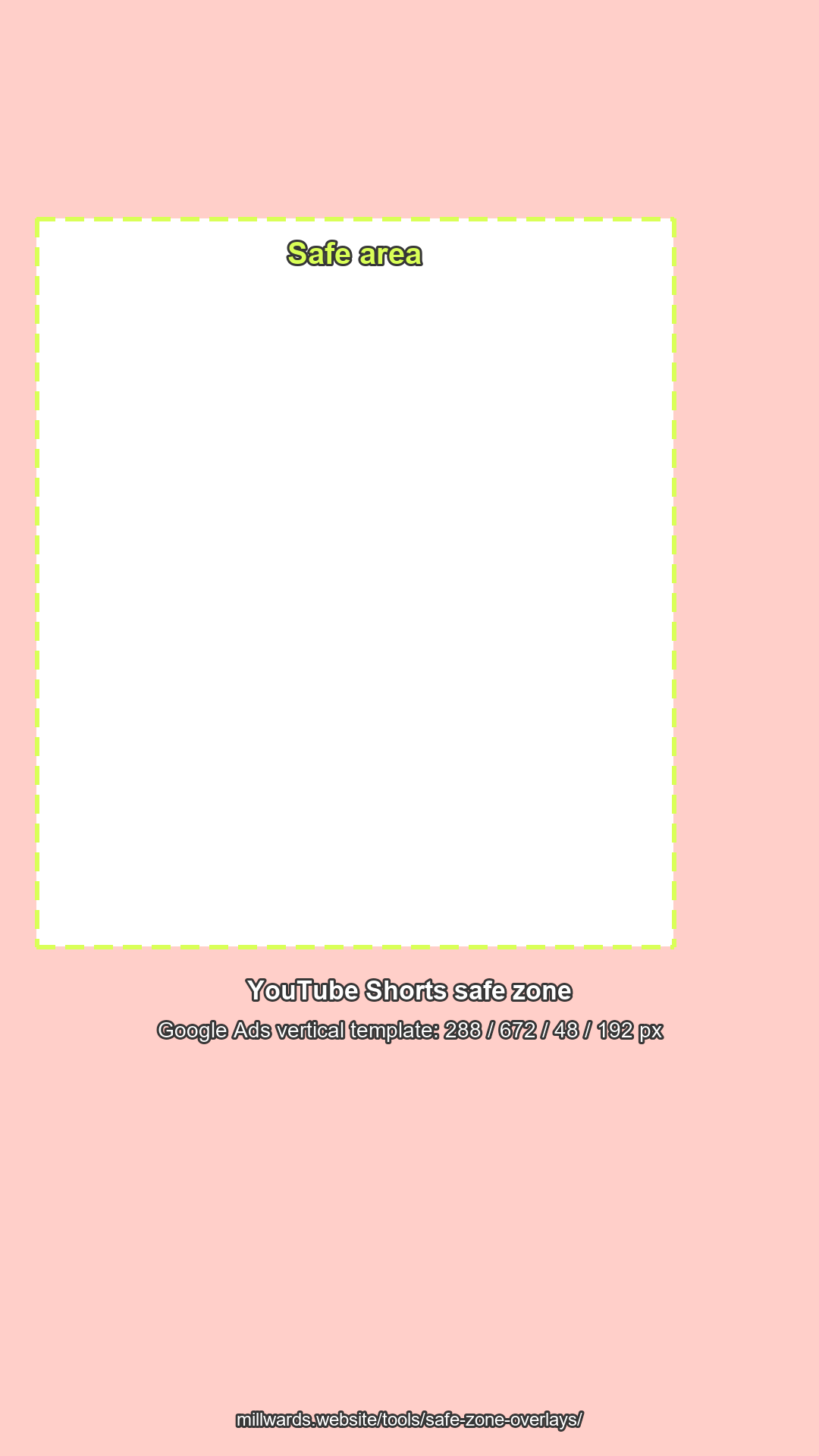
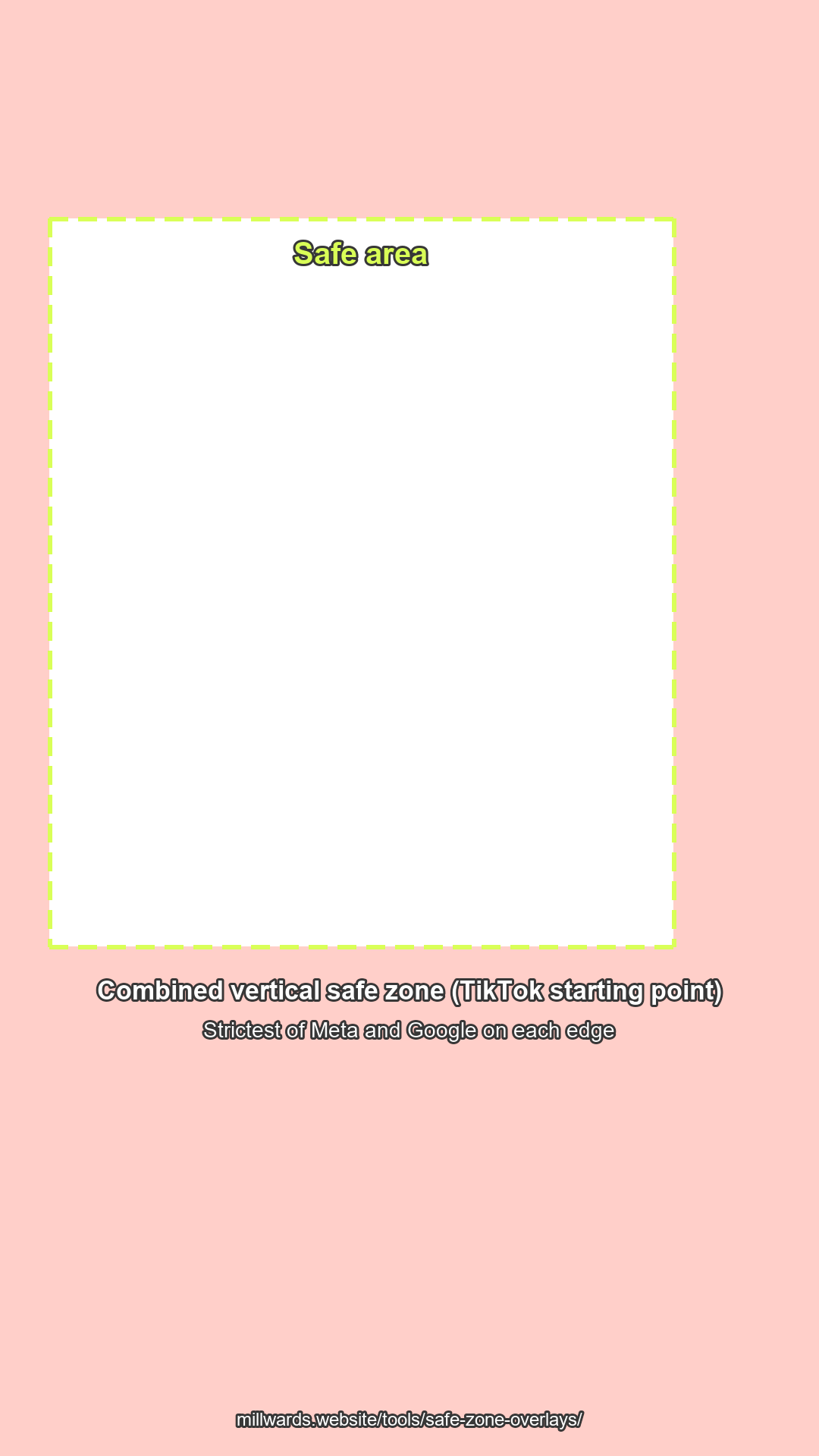
All files are 1080 × 1920 with a transparent centre. Shaded bands are where the app's buttons, captions and progress bar may sit.
Where each margin comes from
| Overlay | Top | Bottom | Left | Right | Source |
|---|---|---|---|---|---|
| Instagram Reels | 269 px (14%) | 672 px (35%) | 65 px (6%) | 65 px (6%) | Meta suggests leaving "roughly 14% of the top, 35% of the bottom and 6% on each side" clear: Meta ads guide, Instagram Reels. Percentages rounded to whole pixels. |
| YouTube Shorts | 288 px | 672 px | 48 px | 192 px | The pixel labels on the "YouTube | Vertical Video Ads" 1080 × 1920 template in Google Ads Help, About video ad specs. |
| TikTok (combined) | 288 px | 672 px | 65 px | 192 px | Not a TikTok figure. TikTok says its safe zone "is determined by the dimension (vertical, horizontal, or square)" and caption length, and offers downloadable template files instead of numbers (TikTok Ads help, In-Feed ads). This overlay takes the larger of the Meta and Google margins on each edge, so it is a cautious starting point. For TikTok ads, use TikTok's own files. |
Sources checked 30 to 31 October 2026. These figures come from ads guidance; ordinary posts use a similar layout but have no separate official numbers we could find. Layouts change and screens differ, so preview the real post before publishing.
How to use an overlay in your editor
- Set the project to 1080 × 1920 (9:16). If your footage is landscape, see landscape to vertical first.
- Import the PNG and put it on the top video or image track, stretched across the whole clip. It lines up exactly with a 1080 × 1920 frame.
- Move titles, captions and faces until they sit inside the dashed box. Leave the right-hand band clear: like, comment and share buttons sit there in all three apps.
- Hide or delete the overlay track before export, or it will be burned into your video.
Want to see the overlay on a frame from your own video first? The safe zone checker draws it on any image or video you choose, in your browser, without uploading it. It also accepts an official template image, such as TikTok's, as an extra layer.
Then trim and export the clip
Millwards Studio is a browser video clipper for videos you own: upload a file, trim the hook, choose 9:16, 1:1 or 16:9, add captions and export. Free exports are 720p WebM made in your browser with a watermark; Pro (£12 per month) gives 1080p MP4 with no watermark. Sizes for each platform are in the video size guide, the Instagram Reels size guide and the YouTube Shorts size guide.
FAQ
Are these official TikTok, Instagram or YouTube files?
No. They are our own drawings of the margins each platform publishes. The Reels overlay follows Meta's ads guide and the Shorts overlay follows the pixel figures on Google's vertical video ad template. TikTok publishes template files rather than numbers, so for TikTok we offer a combined overlay and link to TikTok's own files.
Do the overlays apply to ordinary posts as well as ads?
The published figures come from each platform's ads guidance. We did not find separate official numbers for ordinary posts, which use a similar on-screen layout, so treat the overlays as a planning aid and preview the real post.
Will the overlay appear in my exported video?
Only if you leave it switched on. Put it on the top track as a guide, then hide or delete that track before you export.
Can I use the files for client work?
Yes. They are free to use as editing guides in personal and commercial projects. You do not need to credit us, though a link back is appreciated.
Millwards Studio is for video you own or have the rights to use.